New user guide
Background[edit | edit source]
This article will provide some basic information to help new users get the most out of Kotahi. Please note that in Kotahi there are multiple different ways of doing the same thing - we do not document all of them here.
Signing in[edit | edit source]
New users will already have been issued a username and password to sign in. The sign-in URL to use is: https://kautepasifika.kotahi.nz
Also included in your sign-in instructions will be a reminder to set up 2FA and change your assigned password.
Setting up 2FA[edit | edit source]
Kotahi contains a lot of sensitive information, so it's crucial we protect it by making sure 2FA is set up - it's really easy!
If you don't already have one, you will need an authenticator app on your phone. Google Authenticator or Authy are good choices and available for Android or iOS. Once logged into Kotahi, just click on 'Enable 2FA' near the top right.

You can then use your authenticator app to scan the QR code, which will set Kotahi up as a new account. Enter the 6 digit code from your app into the 'Verification Code' box in Kotahi, and click 'Verify'.

You will then see a set of 'Recovery codes' - these are really REALLY helpful in case you change or lose your device and can't get into your Kotahi account. Please copy and paste these into a text file and save it somewhere safe, so you can use them in future if necessary!
 | Note that as of February 2025, 2FA is mandatory for all users. |
Changing your password[edit | edit source]
You will have been notified of your initial password by a member of staff. To make sure that only you can access your account, you should change your password straight away. This is really easy.

Go to 'Quick actions' in the top right, and choose 'Change your password'.
All you have to do now is enter your current password, followed by your new one (twice). Click 'Update password' and you're all set.
Finding clients[edit | edit source]
The quickest route to finding a client (or their family) is to search for the name in the 'Client Search' box on the right.

Note that only up to five records are shown - if the client you want isn't in the list then just keep typing!
We can only search by individuals, but their fanau members will be already set up and available via the 'Whanau' button on the left side.

Getting the latest info[edit | edit source]
In the bottom right you will see a client 'timeline'. This summarises key activities in date order. To see more detail choose 'Activity'; this will list all completed activities in order from newest to oldest.[1]
You can click on the activity to read it. Note that, depending on the client and associated services, some activities might be marked as confidential. You can still open and read these if necessary, but the owner will be notified that it has been viewed.

Whanau ora Requisition status[edit | edit source]
The Whanau ora requisition workflow has multiple stages of approval. A new version of the form is saved at each stage. This is how to check the requisition status for a particular client, in case you are dealing with a query.
| Requisition status | Description |
|---|---|
| Submitted but not approved | You will see a completed 'Requisition Form' activity but no subsequent 'Requisition Approval' activity (or the approval is incomplete or parked). |
| Approved by Team Lead but not by GM/CE | You will see a completed 'Requisition Approval' activity but it will not have a 'TOTAL APPROVED REQUISITION AMOUNT' entered. |
| Approved by GM/CE but not yet paid/actioned | The latest completed 'Requisition Approval' activity has 'Ready for Finance' ticked. |
| Complete | The latest completed 'Requisition Approval' activity has 'Finance completed' ticked. |
Adding information[edit | edit source]
To record a contact like a message, or an incoming request, it is best to use the generic 'Narrative Case Notes' activity.
Find your client, go to 'Add Activity' near the top right. This takes you to the Activity tab.
Use the top right menu to choose the Narrative Case Note. You can now add as much information as you like to make a record of the contact.
If any follow-up action is required, then follow the below process:
- Start a new narrative case note
- Enter any information needed to record the contact
- At the bottom, tick 'Send requisition task' and you can then choose who to assign the task to.[2]
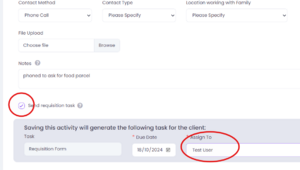
Sending a new requisition task to the Navigator - This emails the Navigator directly to tell them about your message
- A notification is added for that user in Kotahi:
- The Navigator will then need to follow up with the requisition, following their usual process.
- Once complete, the Navigator must check the task is complete.
- It is easy to see the status of a users' tasks, by using the 'Tasks' menu, and filtering for user and 'All Incomplete Tasks'.
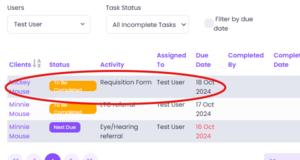
Checking status of tasks for a user


If it's still in the list then it hasn't been completed yet. Alternatively, you can check the client record to look at 'Activity' and find a requisition and any associated updates.
Managing tasks[edit | edit source]
Kotahi lets us set out key activities that need to be completed for a service or contract. Sometimes other people will assign you tasks to complete, and you will get email notifications about these. Managing tasks are the key to staying on top of things!
What do I need to focus on next?[edit | edit source]
The best way to find out what needs to be done most urgently, is go to your 'Tasks' using the left menubar. By default this will show your 'next due' tasks. Some of these might have already been completed.

Change the 'task status' to Incomplete or Overdue, and click on 'Due date' to sort it by date.[3]
You can also choose 'All incomplete tasks' and sort by due date, to show anything that needs to be done now or in the near future.
How do I cover someone else's tasks?[edit | edit source]
Following from above, this same approach can also be used to pick up someone else's tasks in case they are sick or on leave. In the Kotahi task manager, simply select the person's name to find their own Incomplete or Overdue tasks.
Hauora assessment[edit | edit source]
This is a draft new feature (as at March 2025) but is likely to be central to the Wellbeing model.
It allows some important new functionality:
- Configuration of domains and outcomes which are strategically important.[4]
- Design of an assessment questionnaire which can be used to capture family strengths/needs.
- Availability of the assessment for a client, providing summary metrics showing individual strengths and needs.
- Follow-up assessments capture quantitative change and visualise progress.
- Goal setting is highly structured, and can be split into multiple actions - each with different responsible people and timelines.
This is not yet being used 'live' within K'aute but we are assessing its utility.
References[edit | edit source]
- ↑ Note that any incomplete of parked activities will always show first, regardless of date!
- ↑ This will usually be the Navigator. However if the request is urgent then check the Navigator is actually working first - otherwise send to another person or delegate who can complete the requisition.
- ↑ Note that changing status will reset the sort order, so try to set things up in the described order to avoid confusion.
- ↑ These are used later in goal setting where a client goal/action must be aligned with outcomes.